Fit to Body
See how the stencil actually sits before export
Wrap the stencil around the placement and check the fit before printing or transfer


Fit tattoo stencil to body
Shape your stencil around arms, legs, and curved areas so you can catch placement issues before the session
Why placement matters
Curved placements change spacing, proportions, and flow. What looks balanced on a flat reference can feel stretched, compressed, or awkward once it wraps around an arm, leg, or other curved area. Checking the fit before printing helps you catch those problems earlier, while edits are still easy
Fit to Body
Wrap the stencil around the placement and check the fit before printing or transfer
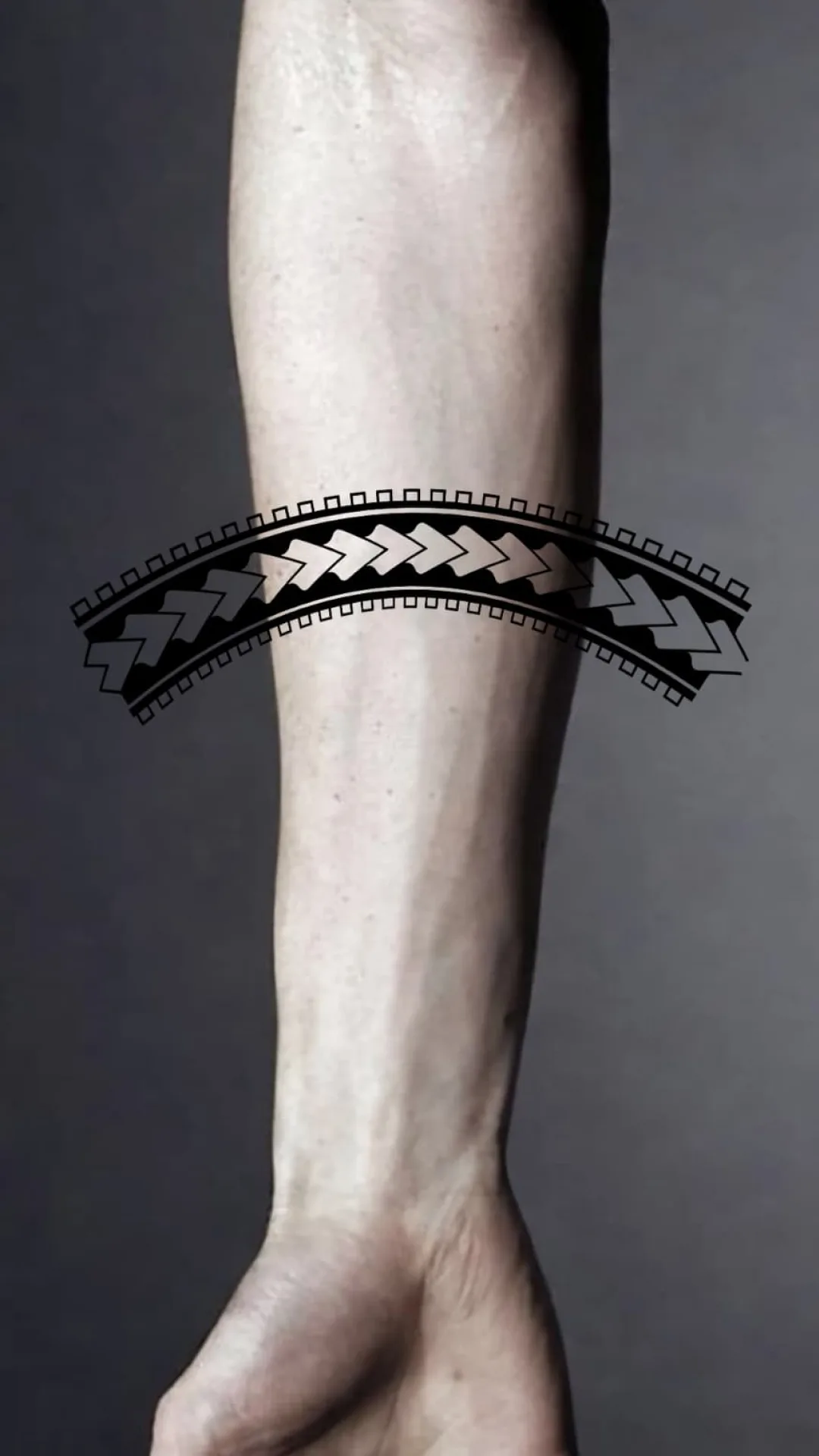
Before
Flat stencil
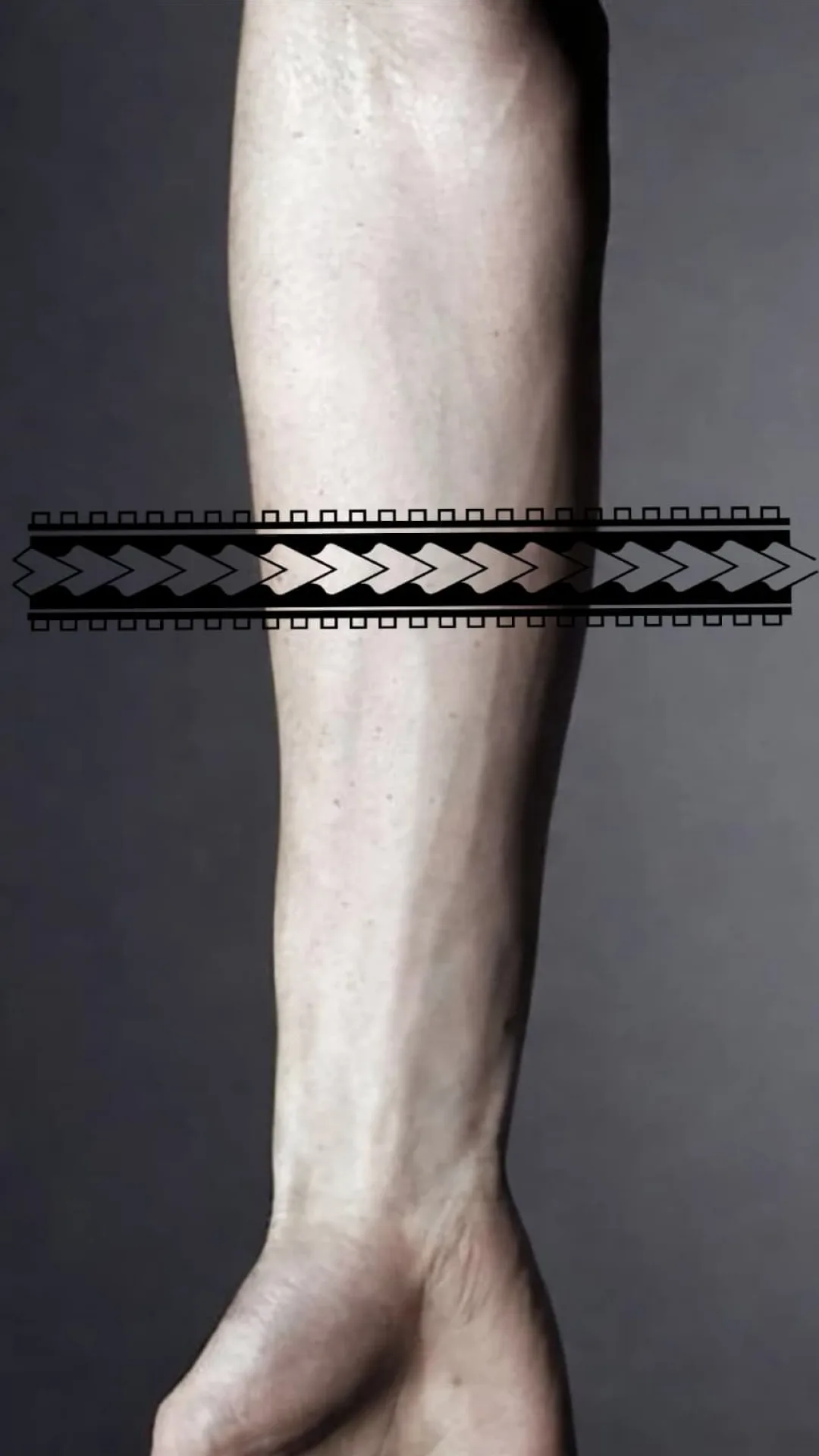
After
Fitted to the body
Placement Controls
Use one set of tools to control how the stencil wraps, narrows, and aligns before it reaches print or transfer
Curve the stencil around arms, legs, and other rounded placements before the stencil is committed downstream
Make one end wider and the other narrower so the stencil follows the shape of the body part more naturally
Set the direction of the body part first, then let wrap and taper follow that line instead of guessing orientation
Optionally add a body photo when you want the fit preview anchored to the actual area before export
Why it matters
Catch bad fit before the stencil reaches print or transfer
Check curved placement faster on arms, legs, and similar body areas
Export a placement-ready result instead of a flat version that still needs adjustment
Keep the placement conversation clearer for both artist and client
Tattoo stencil placement
Use Fit to Body to preview tattoo stencil placement on curved areas and catch alignment, spacing, and flow issues before the stencil reaches transfer paper
Practical Guide
Use the placement guide to review wrap, spacing, focal point, and body flow while the stencil is still easy to adjust.
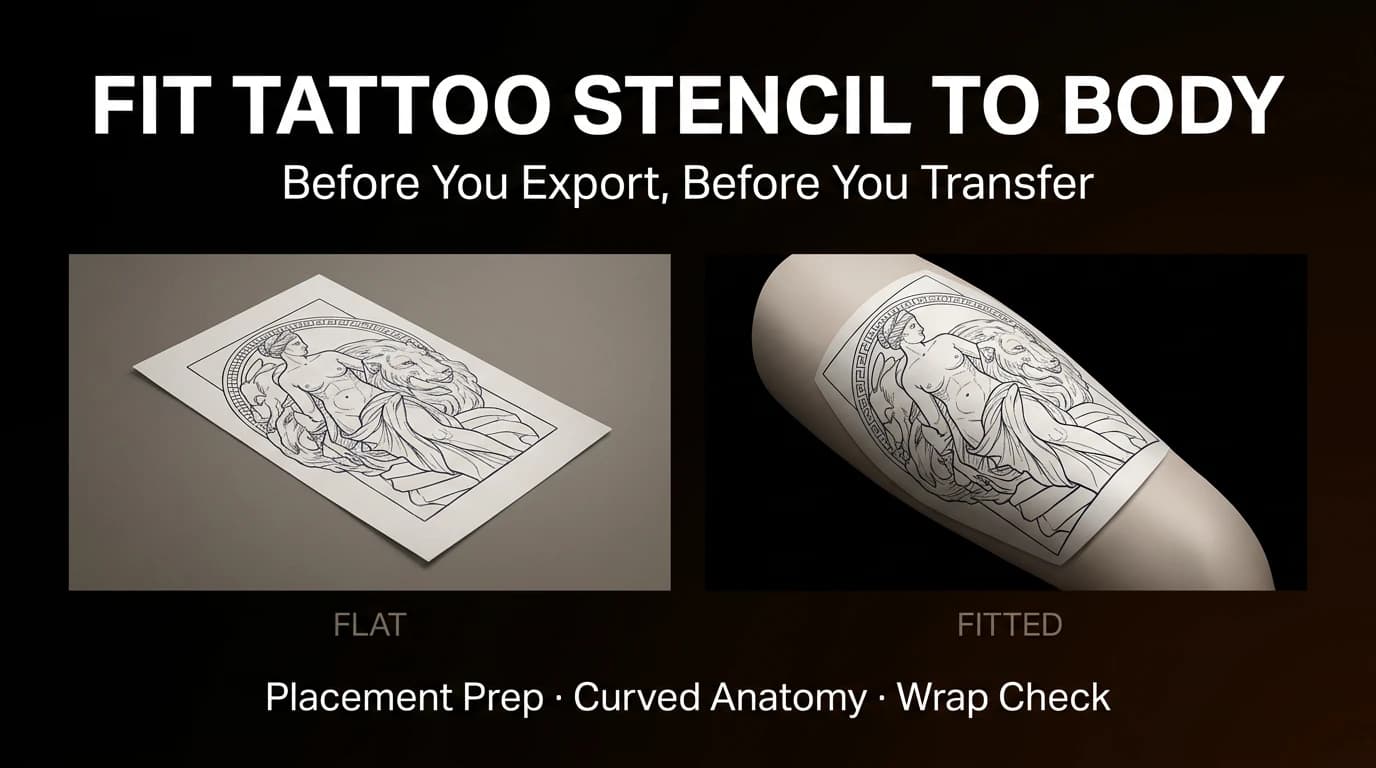
Review focal point, wrap, compression, negative space, and body line before exporting a tattoo stencil for a curved placement.
FAQ
Fit to Body helps artists shape a stencil around curved body areas before export. The live placement workflow includes wrap, taper, and body-line controls